
Why untracked time is lost money
If you bill by the hour, every minute you don't record is revenue you've given away for free. And it adds up quietly: the 15 minutes on a call here, the half hour of revisions there. At the end of the month you remember the big blocks of work and forget the small ones — so you under-bill without ever deciding to.
The fix isn't discipline, it's friction removal. If logging time takes one click and turning it into an invoice takes one more, you'll actually do it. That's the whole design goal: capture the time as you work, bill it without re-typing.
Two ways to track time in ClientDeck
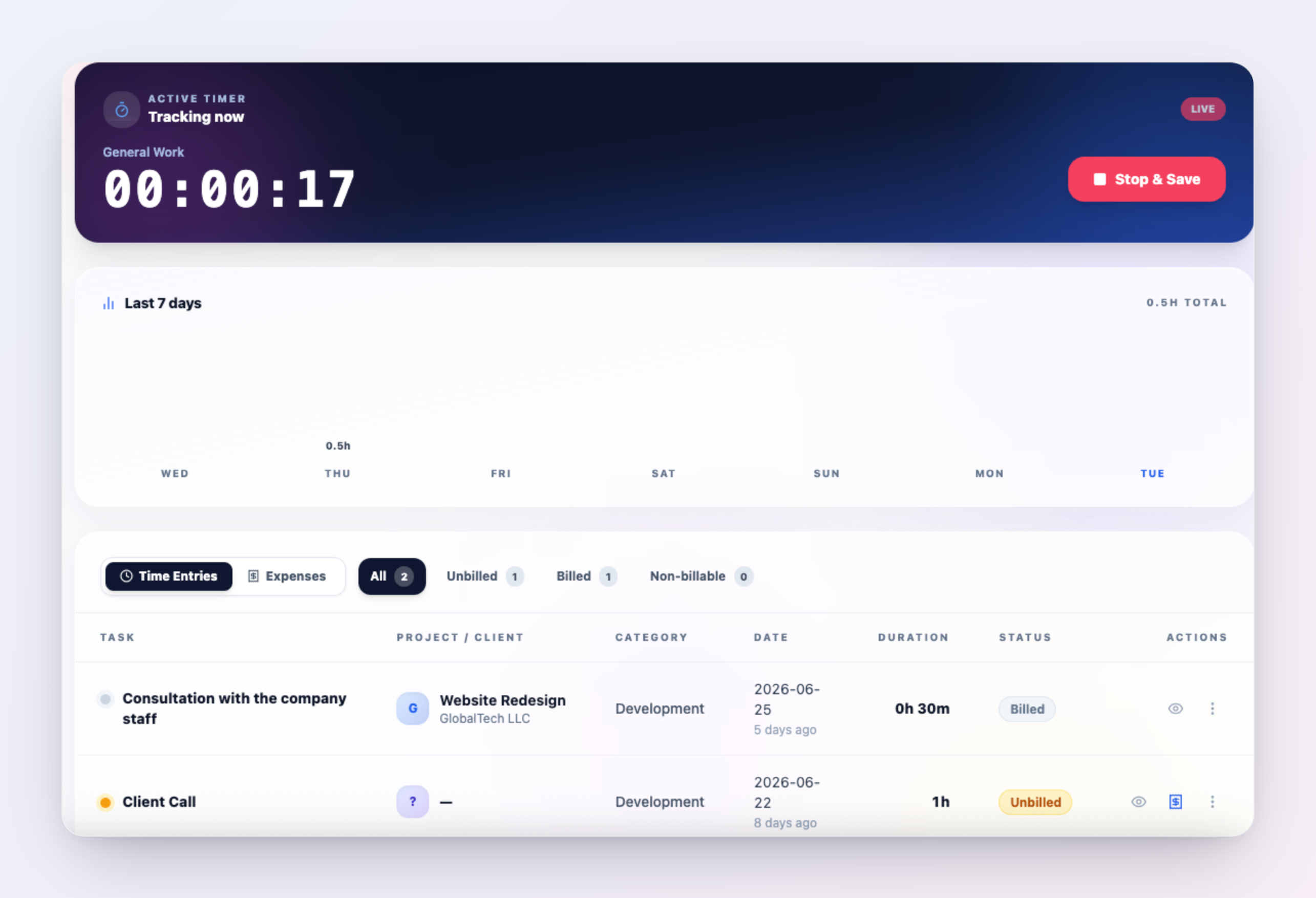
ClientDeck gives you both a live timer and manual entry, so you can track time the way that fits the moment:
- The live timer. Start the timer when you begin a task — give it a name, pick the project, and let it run. Stop it when you're done and the entry saves automatically with the elapsed duration. Best for focused work you're doing right now.
- Manual entry. Already did the work? Log it after the fact by entering hours and minutes and the date. Best for catching up at the end of a day or recording time you forgot to start the timer for.
Both live in the Time & Expenses workspace, and both create the same kind of entry — so however you capture it, the time bills the same way.
Tag every entry so it can actually be billed
An hour of time is only billable if ClientDeck knows who to bill and at what rate. When you log time, set:
- Project — links the entry to a client (the project's client is who gets invoiced). An entry with no project can't be converted to an invoice.
- Billable — leave it on to bill the time, or switch it off for internal work you want to record but never charge for.
- Category — an optional label (e.g. Development) to organize your time. It doesn't affect billing.
How your hourly rate is decided
ClientDeck values each entry using the most specific rate available, in this order:
- The rate on the entry — captured as a snapshot when you log the time, so changing a rate later never silently rewrites old entries.
- The project's hourly rate — used when the entry itself has no rate.
- Your workspace default rate — the fallback, set under Settings → Business.
One thing to know up front: if none of these is set, the rate is zero — and ClientDeck will block the conversion to an invoice rather than bill an hour at $0. Set a default hourly rate during setup so this never trips you up.
Turn unbilled hours into an invoice
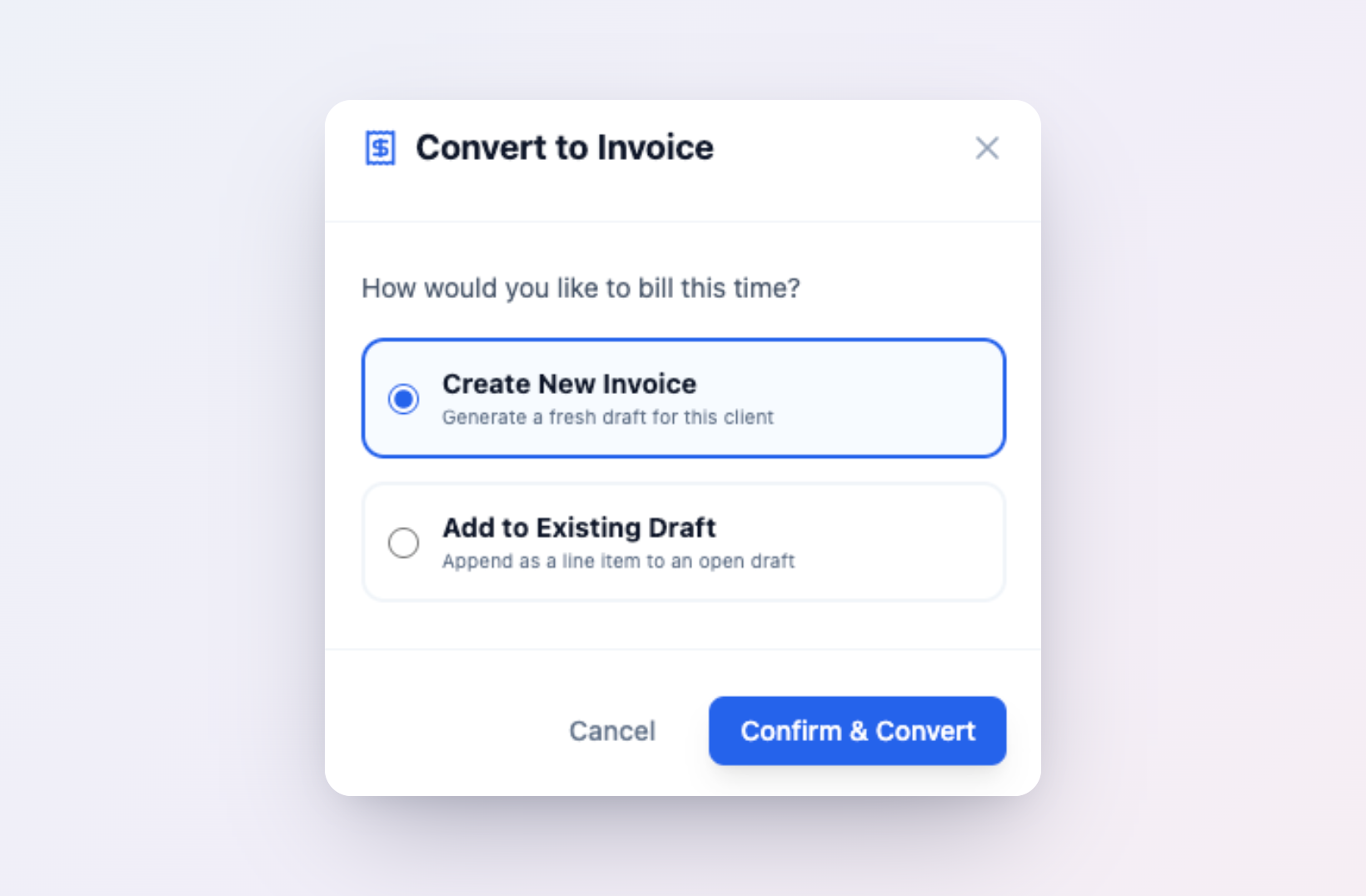
This is the step that turns tracked time into money. Every unbilled, billable entry has a Convert to Invoice action. When you use it, you choose how to bill it:
- Create a new invoice — ClientDeck builds a fresh invoice for that project's client, with the time entry as a line item: the task name as the description, the hours as the quantity, and your rate as the unit price.
- Add to an existing draft — append the time to an invoice you're already building for that client, so a batch of work lands on one bill.
Either way, the entry flips from Unbilled to Billed so you never accidentally charge for the same hour twice. (Converting is done per entry, which keeps you in control of exactly what lands on each invoice.)
Keep an eye on what you haven't billed yet
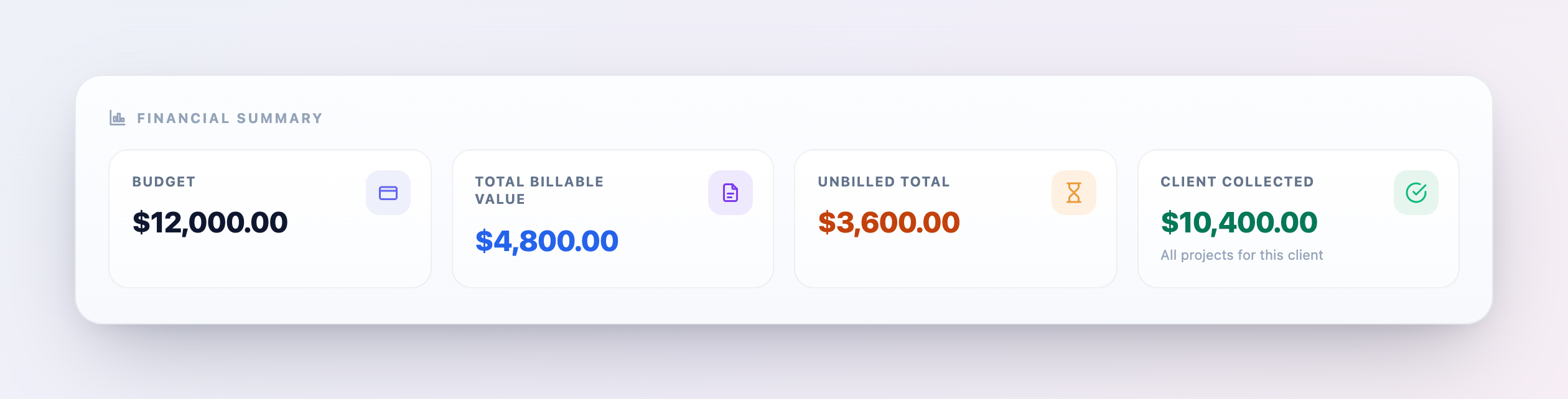
Each project's financial summary shows its unbilled total alongside budget, billable value, and collected revenue — so you can see at a glance how much tracked time is still sitting un-invoiced. Make a habit of clearing unbilled time at the end of each week or project phase, and the gap between "work done" and "money in" stays small.
Common mistakes to avoid
- No rate set anywhere. The convert step blocks at a $0 rate. Set a workspace default rate during setup, and a per-project rate when a client's rate differs.
- Forgetting to link a project. Time with no project can't be invoiced. Pick the project when you log the entry, not later.
- Letting unbilled time pile up. The longer you wait, the harder it is to remember and justify. Clear unbilled entries on a weekly rhythm.
- Marking internal work billable. Switch off Billable for admin and internal time so it never accidentally lands on a client invoice.
Tracking time well is half of getting paid well; automating the invoice is the other half. If you bill the same clients every month, pair time tracking with recurring invoices for retainer clients, and make sure you've connected the right payment gateway so clients can pay the moment the invoice lands.
Frequently asked questions
Yes. ClientDeck includes a live timer you start and stop as you work, plus manual entry for logging hours after the fact. Both create time entries in the Time & Expenses workspace that you can bill the same way.
Each unbilled, billable time entry has a Convert to Invoice action. You choose to create a new invoice or add the time to an existing draft; ClientDeck adds it as a line item (task as description, hours as quantity, your rate as unit price) and marks the entry Billed.
You convert entries one at a time, but you can send them all to the same invoice by choosing "Add to existing draft" for each — so a week of work lands on a single bill. This keeps you in control of exactly what appears on each invoice.
It uses the most specific rate available: the rate snapshot saved on the entry first, then the project's hourly rate, then your workspace default rate. If none is set the rate is zero and ClientDeck blocks the conversion rather than billing at $0.
Yes. Time tracking — both the timer and manual entry — is available on every ClientDeck plan, including the free plan.
Stop leaving billable hours on the table.
Start free with ClientDeck