
Why manual reporting sucks (and we've all done it)
I've been there. You pull CTR from Meta, conversions from Google Ads, engagement from LinkedIn. You paste it all into a template, write some commentary, format the headings. An hour later you have a report that the client will skim for 90 seconds and never open again.
The time sink is bad enough. But the real problem is that this kind of reporting doesn't actually help the client. It's a data dump with a logo on it. What clients want is someone to tell them what the numbers mean and what to do about them. That's what the AI does — it reads your inputs, pulls out the signal from the noise, and writes something that reads like analysis, not a spreadsheet.
Three ways to feed the AI
When you hit "Generate New Report" in ClientDeck, the first thing you'll see is a choice. Pick whichever matches what you have on hand:
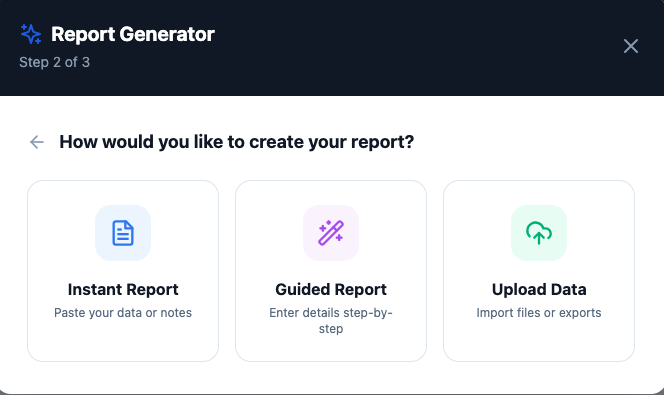
1. Instant Report — just paste whatever you've got
This is the fastest path. Copy your campaign stats, project notes, a Slack update, a rough transcript — literally anything. Paste it into the box and click Generate. You don't need to structure it. The AI figures out what's in there and builds a "Monthly Insights" document around it.
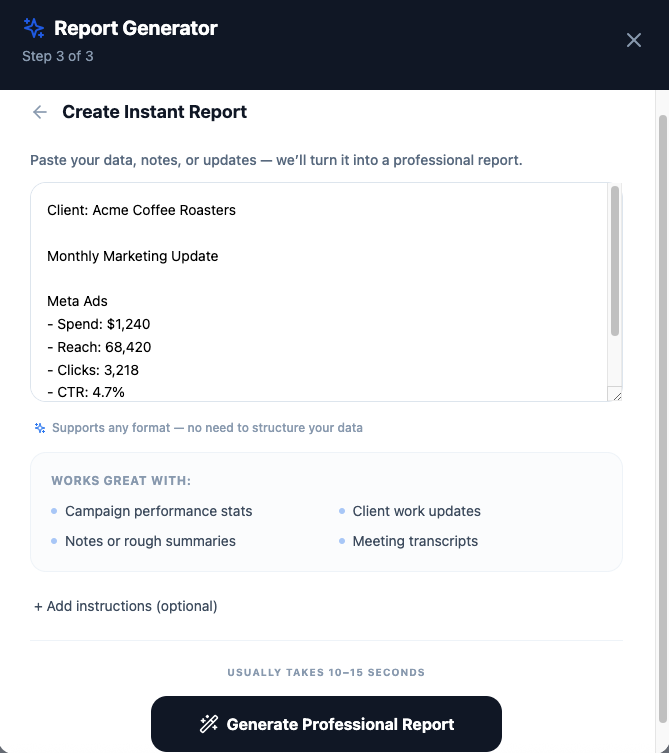
It works especially well with:
- Ad campaign stats — impressions, clicks, conversions, spend. Copy-paste from Meta, Google, wherever.
- Project updates — what shipped this week, what's blocked, what's next.
- Voice notes or transcripts — recorded a client call? Dump the transcript in. The AI will pull out the decisions and action items.
2. Guided Report — step through a form
If you prefer some structure (or you're training a team member and want consistency), the guided wizard gives you a form to fill out. Pick your report type first:
- Performance Report — campaign name, objective, dates, platform, budget, impressions, clicks, conversions, CTR, audience, notes.
- Project Update — project name, status, completed tasks, blockers, next steps.
- Content Report — platforms, content types, pieces published, top performer, engagement totals, audience growth.
Leave fields blank if you don't have the data. The AI won't hallucinate — it just works with whatever you give it.
3. Upload a file
Have a CSV from Google Ads? A spreadsheet with weekly numbers? Drag it in. The AI reads the file and uses its contents to build the report. There's also an "additional instructions" field where you can say things like "compare these numbers to last month" or "highlight the drop in CPA."
What you get back
The editor opens in a split view. Left side: your raw input. Right side: the AI's draft. It comes out formatted as a "Monthly Insights" document — headline metrics at the top, analysis in the middle, recommendations at the bottom. Nothing locked. You can edit any sentence, rewrite whole sections, or add things the AI didn't cover.
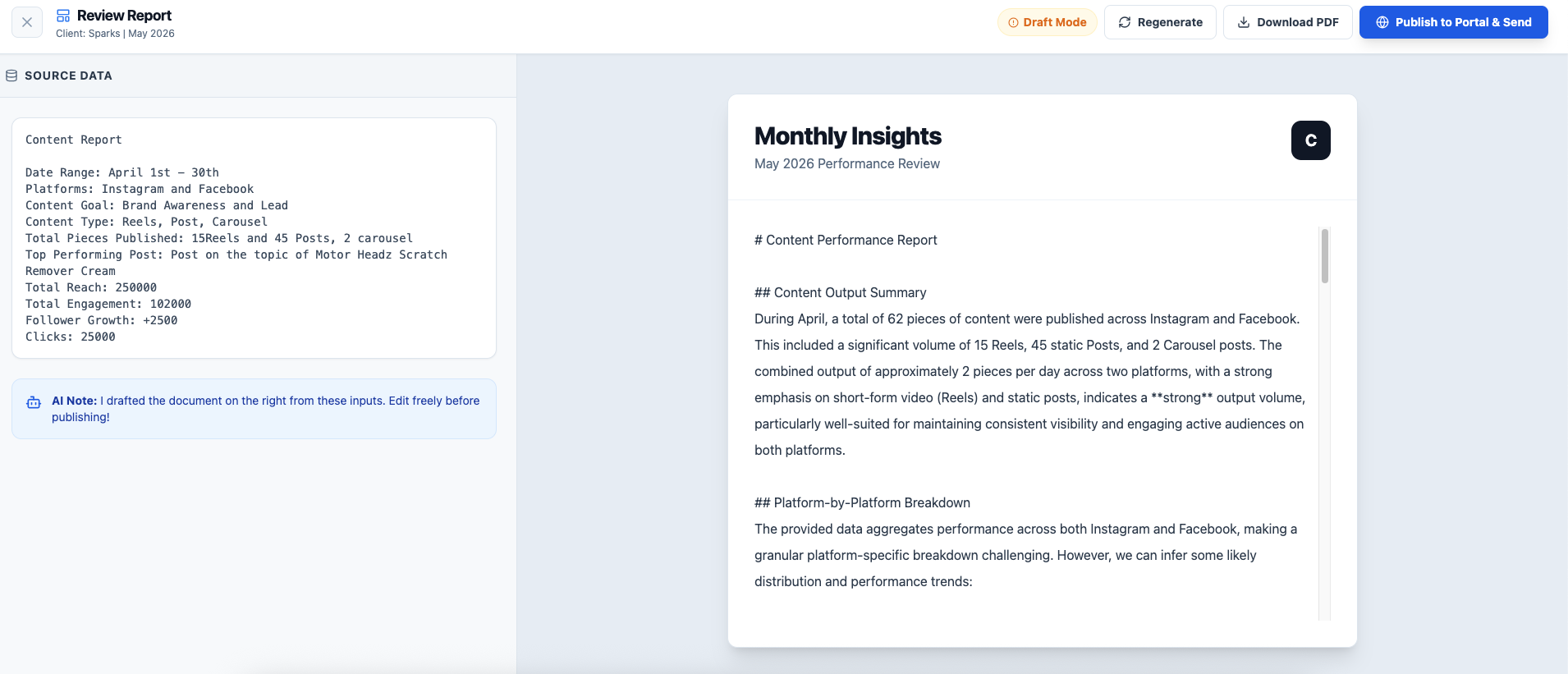
There's a note from the AI right there in the editor that says it better than I can: "I drafted the document on the right from these inputs. Edit freely before publishing!"
If the draft isn't quite right, don't fix it manually — use Regenerate. You tell the AI what to change ("shorter," "more casual," "focus on the conversion rate drop") and it rewrites the whole thing in that direction. Way faster than editing line by line.
Publish it, don't email it
When you're happy with the draft, click Publish to Portal & Send. The report appears in that client's branded portal — the same place they see their invoices, project boards, and shared files. No attachment to get lost in an inbox. No "hey, did you get the report?" follow-up. The client logs in, it's there.
Autopilot: schedule it and forget it
If you're sending the same kind of report to the same client every month, don't touch the wizard at all. Set up Autopilot — pick a frequency (like the 1st of every month), a time, and any standing instructions you want applied to every run. ClientDeck regenerates and delivers it on schedule. There's a "test" button so you can confirm it works before committing.
One autopilot rule per client. Each runs independently. You can update or turn off any rule whenever.
Plan limits (so you know what to expect)
Every plan includes AI reports. The difference is volume:
- Free — 2 reports per month. Enough to try it on a real client.
- Plus ($9/mo) — 50 reports per month. Comfortable for most solo operators.
- Pro ($24/mo) — 150 reports per month. Built for agencies with multiple clients.
There are also hourly rate limits — 2/hr on Free, 10/hr on Plus, 30/hr on Pro — to keep things fair. If you hit the hourly cap, you just wait a bit and try again.
Frequently asked questions
Pretty much anything. Bullet points from a client meeting. Numbers copied from Meta Ads Manager. A paragraph you dictated into your phone. The AI doesn't require a specific format — it parses unstructured text and finds the metrics and themes. If it isn't sure about something, it'll make a reasonable guess rather than leave a blank.
Yeah, of course. The whole thing is editable. Change a number, add a paragraph about something the AI didn't cover, rewrite the conclusion. If you want the AI to redo it with a different angle, use Regenerate and tell it what to change — "make it punchier," "add a section about ROI," whatever.
Once you hit Publish, the report shows up in that client's portal under "AI Reports." It's a clean, formatted document — not a raw AI output. The client sees your branding on the portal, not ours. They can log in anytime. You can unpublish or update it whenever.
Each client gets their own Autopilot rule with its own schedule, time, and instructions. They don't interfere with each other. If Client A gets a report on the 1st and Client B on the 15th, both fire on their own.
Try it on a real client report — takes about 15 seconds.
Start free with ClientDeck